How to Use a Cricut for Paper Crafts: Beginner’s Setup Guide

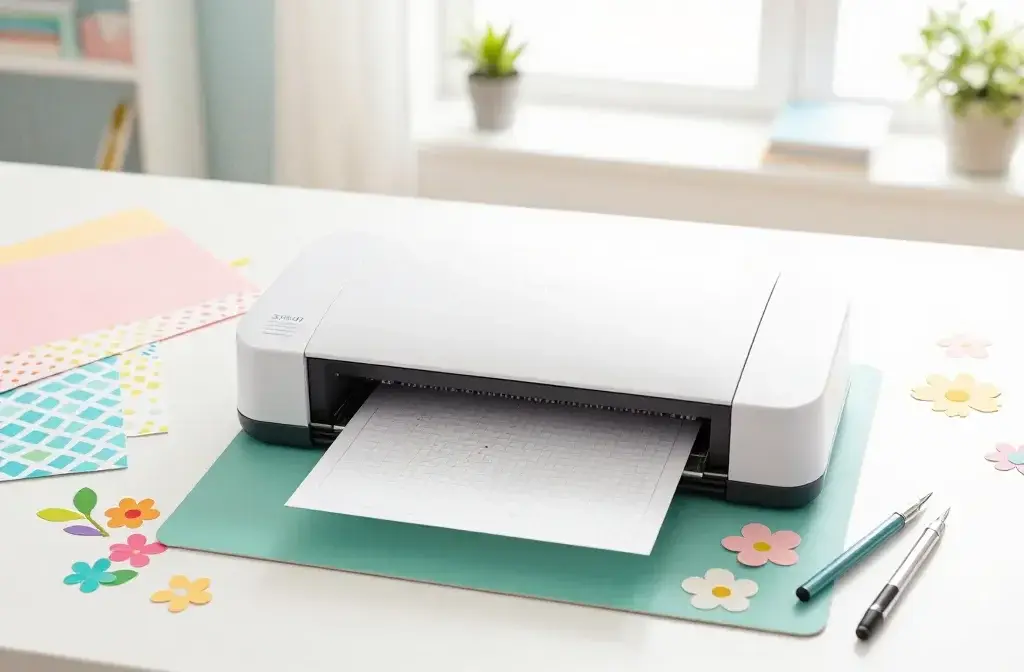
You just unboxed your shiny new Cricut machine, and now you’re staring at it like it’s a spaceship control panel. Don’t panic! Getting started with paper crafts on your Cricut is way easier than you think, and I’m here to walk you through the whole setup so you can start cutting pretty paper in no time.
What You Actually Need to Get Started
Let’s talk about the essentials before you go wild buying every accessory in the Cricut store (trust me, that rabbit hole is deep). For basic paper crafting, you need surprisingly few things.
Your Cricut machine obviously tops the list. The Explore Air 2, Maker, or Joy all work beautifully for paper projects. You’ll also need a laptop or tablet to run Design Space, which is Cricut’s software that tells your machine what to cut. Don’t worry—it’s free.
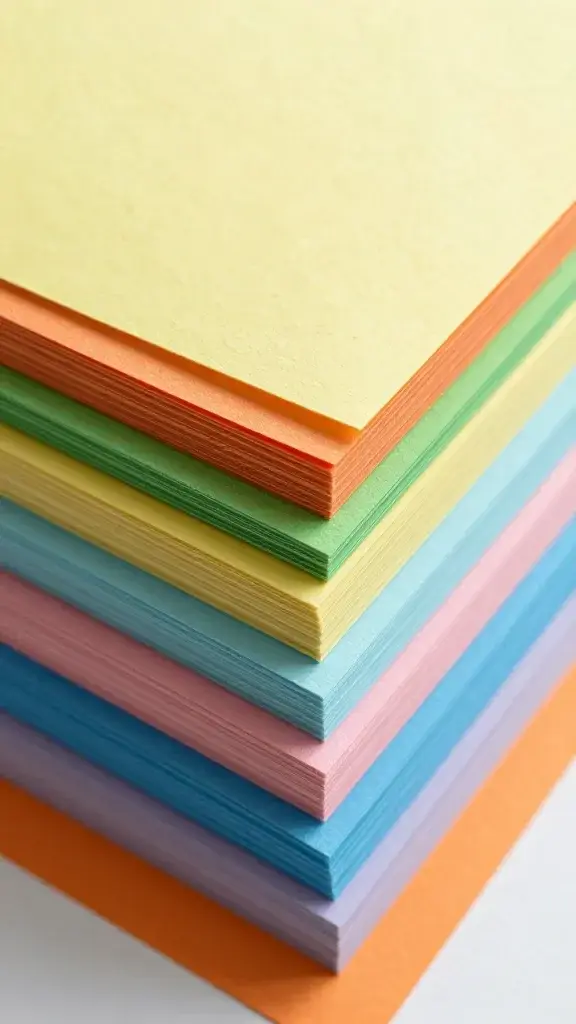
Beyond that, grab some StandardGrip cutting mats (they’re green), a basic blade (usually included with your machine), and some cardstock or patterned paper to play with. A weeding tool helps you pick out tiny paper pieces, and a spatula makes removing finished projects from the mat easier without damaging them.
That’s literally it to start. Everything else is gravy.
Setting Up Your Cricut Machine
Physical Setup
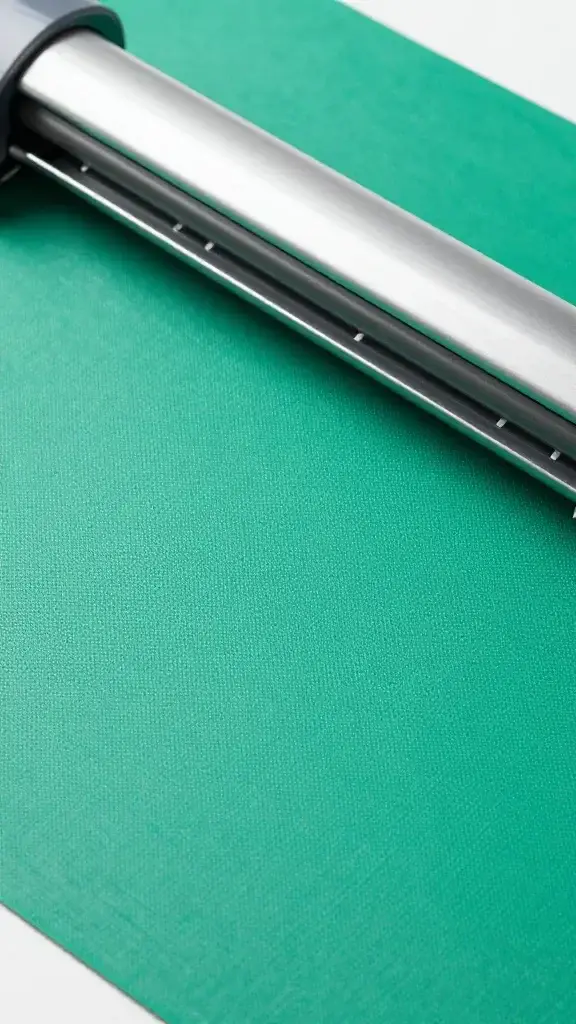
Find a stable surface with decent space behind the machine. When your Cricut feeds the mat through, it needs room to extend backward—about 12 inches or so. I learned this the hard way when my mat pushed a stack of papers off my desk. Not fun.
Plug in your machine and turn it on using the power button. You’ll see some lights blink, maybe hear a little whir. It’s just saying hello.
Connecting to Design Space
Head to design.cricut.com and create an account if you haven’t already. Download Design Space onto your computer or grab the app for your tablet. The setup wizard will walk you through connecting your machine via Bluetooth or USB cable.
Bluetooth can be finicky sometimes, FYI. If it’s giving you grief, just use the USB cable. No shame in the wired game.
Once connected, Design Space will prompt you to register your machine. Do it—this activates your warranty and gives you access to free project trials. The setup wizard will also run a test cut to make sure everything’s working properly.
Understanding Design Space Basics
Design Space is where the magic happens, but it can feel overwhelming at first glance. Think of it as your creative command center where you design, arrange, and send projects to your machine.
The main screen shows you templates and projects. You can search for ready-made designs (some free, some paid), upload your own images, or create custom shapes using the text and shape tools. For your first project, I recommend starting with a free template just to get the feel of things.
The Canvas is your workspace where you arrange everything. You can resize, rotate, and position your design elements here. The Layers panel on the right shows all your design pieces—think of it like Photoshop layers if you’ve used that before.
When you’re ready to cut, hit the green “Make It” button. Design Space will show you how your project will lay out on your mat and let you adjust material settings before cutting.
Loading Your Mat and Material
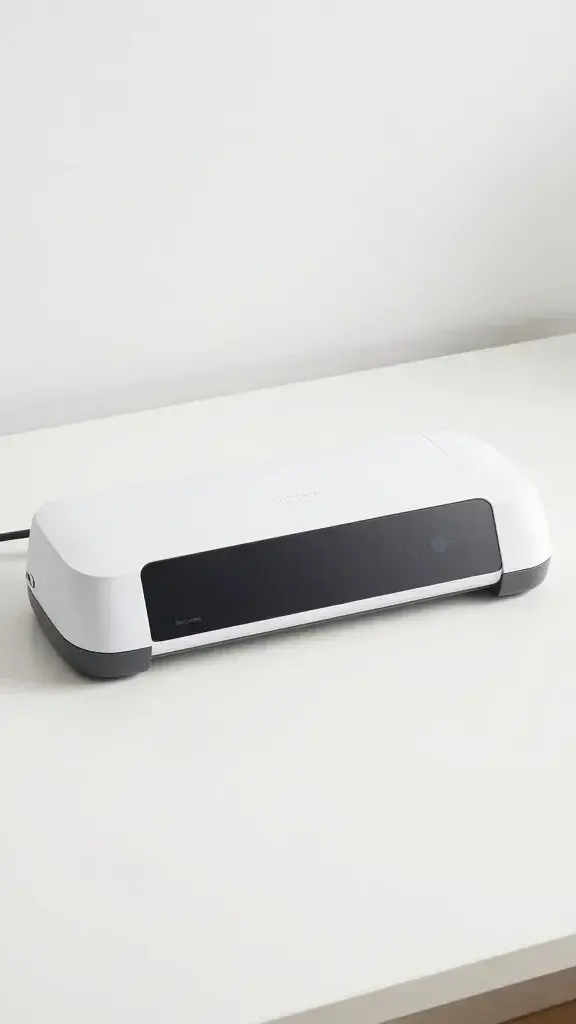
Peel back the protective film from your cutting mat—you only do this once when it’s new. The sticky surface is what holds your paper in place while cutting.
Place your paper or cardstock on the mat, smoothing it down gently but firmly. You want good contact without air bubbles, but you’re not trying to laminate it permanently. Align your paper with the grid lines on the mat so your cuts come out straight.
Load the mat into your machine by sliding it under the guides on the right side. You’ll feel it catch. Then press the flashing arrow button to feed it all the way in. The machine will grip it and position it for cutting.
Material Settings Matter
In Design Space, you’ll select what material you’re cutting from a dropdown menu. For regular paper, choose “Copy Paper.” For thicker stuff, pick “Medium Cardstock” or “Heavy Cardstock” depending on the weight.
The machine automatically adjusts its blade pressure based on what you tell it. Using the wrong setting means either not cutting through your material or cutting through the mat itself. Neither is great.
Making Your First Cut
Hit that glowing Cricut button on the machine, and watch it work. Seriously, the first time you see it cutting intricate designs is oddly mesmerizing. You might find yourself just staring at it like I did.
The machine will make passes across your design, cutting with surprising precision. Complex designs take longer than simple ones—totally normal. Just let it do its thing and try not to bump the table.
When it finishes, it’ll make a little sound and the mat will feed back out. Press the arrow button to unload it completely, then carefully peel back the mat from your paper rather than peeling the paper from the mat. This technique prevents curling and tearing on delicate cuts.
Weeding and Final Touches
“Weeding” sounds fancy, but it just means removing the paper pieces you don’t want. For intricate cuts, use your weeding tool to pick out the tiny bits. Take your time here—rushing leads to ripped designs and sadness.
Some designs have pieces that are supposed to pop out, like the center of an “O” or decorative cutouts. Others need you to peel away the background, leaving only your design shape. The project instructions in Design Space usually show you what should stay and what should go.
If you’re making cards or layered projects, now’s when you’d assemble them using glue, foam tape, or whatever adhesive makes sense. IMO, liquid glue works best for paper-to-paper, but foam dots add nice dimension.
Troubleshooting Common Beginner Issues
The Machine Isn’t Cutting All the Way Through
Your material setting might be too light, or your blade could be dull. Try increasing the pressure using the custom setting, or swap in a fresh blade. Also, make sure your mat is still sticky enough to hold the paper flat.
Cuts Are Crooked or Misaligned
Check that your paper sits flat on the mat without bubbles or wrinkles. Also verify that your mat loaded straight into the machine. Those guide rails on the sides aren’t just decorative—use them.
Design Space Won’t Connect to My Machine
Turn off both your machine and computer, then restart everything. If Bluetooth still won’t cooperate, switch to a USB cable. Sometimes technology just needs a moment to collect itself.
Frequently Asked Questions
Do I need a Cricut Access subscription to use my machine?
Nope! Your machine works perfectly fine without it. Cricut Access gives you access to a huge library of premium images and fonts, plus discounts on others, but plenty of free designs exist. You can also upload your own images for free.
How long do cutting mats stay sticky?
With proper care, several months to a year. Clean them regularly with a baby wipe or scraper to remove paper dust and debris. When they lose their stick, you can use repositionable adhesive spray to refresh them or just buy new ones.
Can I cut different materials at the same time?
Not really. Stick to one material type per mat load since the blade pressure stays consistent across the whole cut. Mixing cardstock and thin paper would mean one cuts poorly while the other gets obliterated.
What’s the difference between all the blade types?
The Fine-Point Blade handles most paper projects beautifully and comes standard with most machines. Specialty blades like the Scoring Wheel (for fold lines), Bonded Fabric Blade, or Knife Blade tackle specific materials. For paper crafts, you’ll probably only need the Fine-Point.
Why does my paper curl after cutting?
Usually because you peeled the paper off the mat instead of peeling the mat off the paper. The pulling motion curls delicate cuts. Also, some papers just curl more than others—try a different brand if it’s driving you nuts.
How do I know when to replace my blade?
If you notice ragged edges, incomplete cuts even with correct settings, or the blade starts tearing paper instead of cleanly cutting it, time for a new one. Most blades last through many projects, but they’re not immortal.
Final Thoughts
You’re now officially ready to dive into the wonderful world of Cricut paper crafting. Start with simple projects—cards, gift tags, party decorations—and work your way up to more complex designs as you get comfortable. The learning curve isn’t steep, and honestly, half the fun is experimenting and figuring out cool techniques.
Don’t stress about making mistakes. You’ll waste some paper, maybe cut through a mat corner, and definitely wonder why Design Space is doing something weird. We’ve all been there. The important thing is to keep creating and have fun with it. Before you know it, you’ll be the person everyone comes to for custom birthday cards and party decorations. Welcome to the craft!